
 EN
EN  FR
FR Installation
The plugin is installed like any other plugin, by uploading the zip archive and activating it.
Configuration
The configuration phase is more structured. Fortunately, we have simplified the process as much as possible.
First, go to the Apidae section of the main menu in the WordPress dashboard, then select “Settings”.
API connection
The first thing to do is to connect your website to your Apidae account.
To do this, you must enter your API key and Apidae project ID.
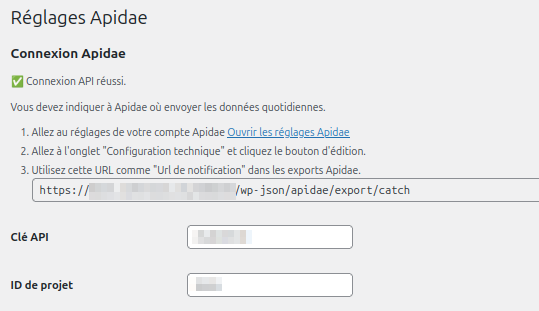
If the credentials are correct, new settings will appear.
Management of daily exports
Some data is not provided by the Apidae API but is available in static files generated daily – for example, the list of municipalities and criteria.
To be able to sort this data, you must provide Apidae with the address of your website's web hook.
- Go to your Apidae account settings by following the link provided.
- Go to the tab « Technical specifications » and click the edit button.
- Use the URL provided by Apidaepress as « Notification URL » in Apidae exports.
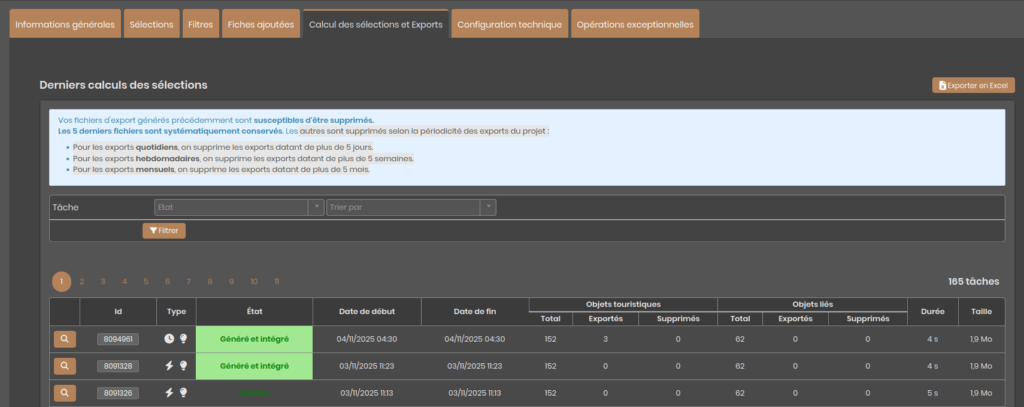
Every day, around 3 a.m., Apidae will call your site to let it know that a new export is available.
On the Apidae side, exports appear to be Generated.
If the notification URL is configured correctly, this export will also appear in the Apidae section of your WordPress dashboard, with the status On hold.
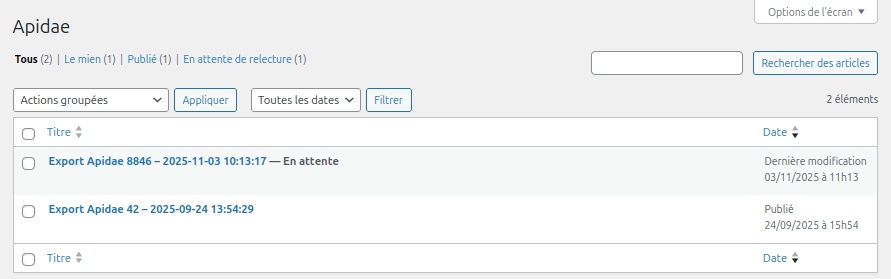
WordPress will then process the pending exports, which may take an hour or more depending on your server configuration. Once processed, the export will appear as Published.
Lors de votre premier paramétrage, pour éviter d’avoir à attendre le lendemain que l’export soit généré, vous pouvez demander à Apidae d’effectuer un export manuel. Attention, cette opération est restreinte, vous ne pouvez pas demander plus de 2 manual exports per day.
Filters
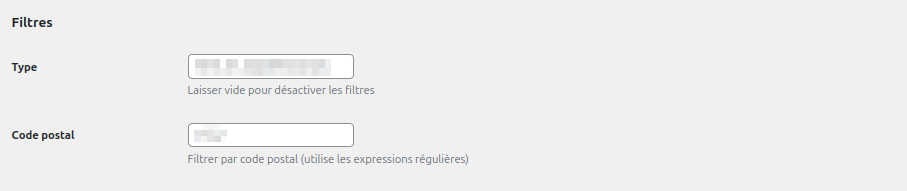
ApidaePress will access all content published on your Apidae account. If you wish to make only part of it accessible from your WordPress site, you can apply these default filters:
Items can be filtered by type by entering FESTIVAL_AND_EVENT for example.
Municipalities can be filtered by postcode. This field supports regular expressions. For example, enter /^31/ to display only municipalities in Haute-Garonne.
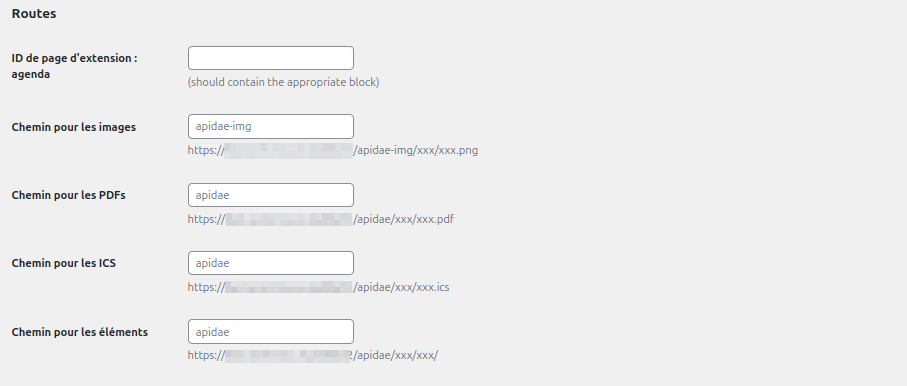
Routes
You can customise the URL scheme for Apidae elements on your website.
Taxonomies
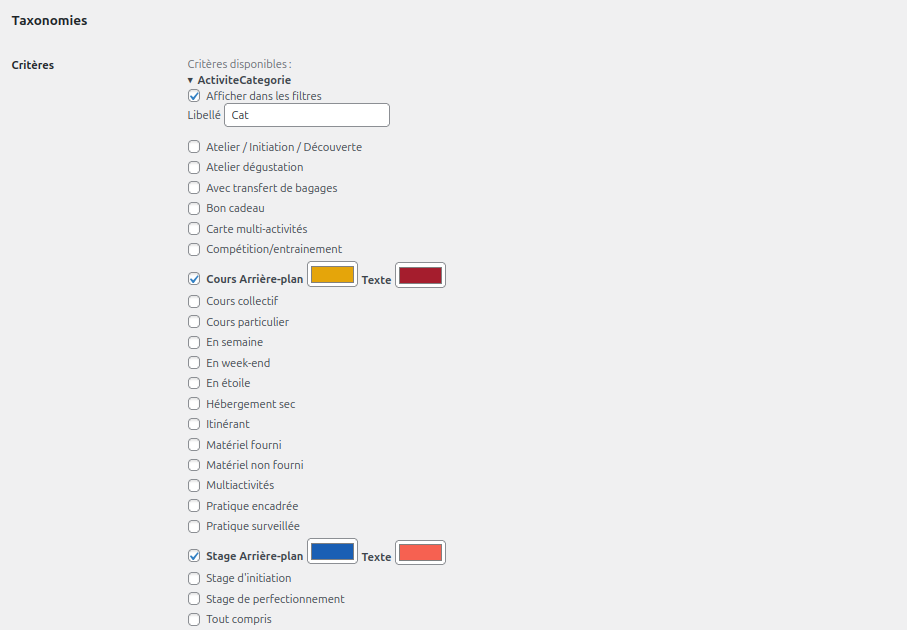
As soon as your first static file import has been processed, the list of available criteria will be displayed on the settings page.
This allows you to select which criteria will be offered in the editing interface for your pages.
To activate a criterion, click on its name to expand it and tick the box « Display in filters"
You then have the option to customise its wording.
All available values are listed above. Please tick the ones you wish to use on your website.
When a value is selected, you can choose the main colour and secondary which can be used when displaying.
Usage
Now that ApidaePress is connected and configured, you can start displaying content on your website!
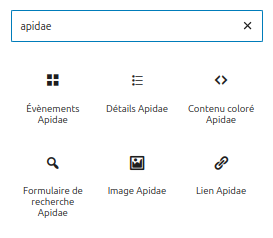
ApidaePress provides numerous customisable blocks for inserting content into your website as you see fit. They are divided into two categories: general blocks and property blocks.
General blocks
Used to insert content anywhere on the site.
- List of Apidae items (Apidae events)
- Apidae search form
Property blocks
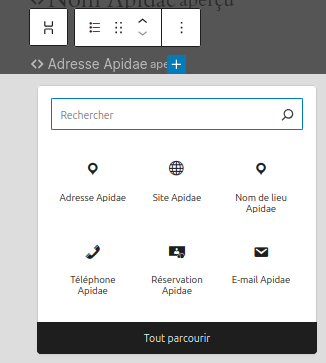
To compose the display of an item. They can be used in general blocks or in the single Apidae tourist attraction page.
- Colourful content
- Name
- Link
- Image
- Map
- Presentation
- Category
- Date
- Details
- Detail sub-blocks
- Address
- Phone
- Link
- Prices
- Reservation
List block of items
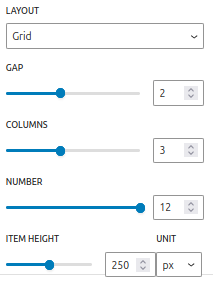
The easiest way to start displaying items is to add a list for which you choose the number of items to display.
You can choose between 3 display modes:
- Feature : qui alterne 1 grand élément et 2 petits. C’est la présentation la plus dynamique visuellement.
- List : The most classic layout, with elements arranged one below the other.
- Grid : The clearest, the elements are arranged according to the settings: spacing, number of columns
Please note that on mobile devices, the list view will be applied in all cases.
Search block
Customise a search engine by selecting sorting criteria.
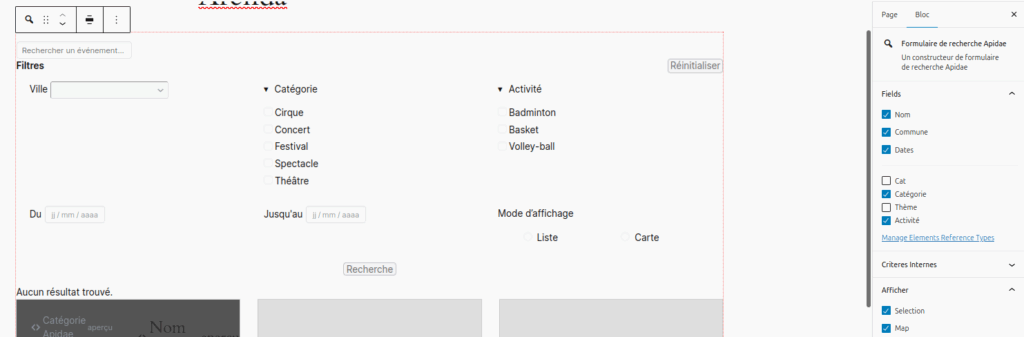
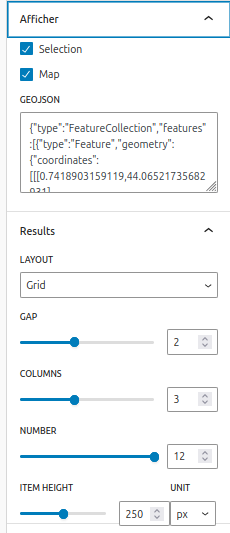
Search results can be displayed in the same way as in the list block.
You can also offer your internet users the option ofdisplay results on a map.
In this case, the GeoJson field allows you to display a custom sub-layer, for example to delimit a territory.
Composition blocks
To compose the display of an item. They can be used in general blocks or in the single Apidae tourist attraction page.
Link
Allows you to create a link to the page of an Apidae item.
This is particularly useful for creating a clickable element with structured content inside.
You can choose to use the image of the element as the background. This block can contain other blocks.
Options :
- Background image
- Image size
Colourful content
This block allows you to colour an element based on the element's taxonomy and the colour assigned in the settings.
This block may contain other blocks.
Options :
- the main colour for the background and the secondary colour for the text
- the main colour for the text
Name
The name of the element.
Options :
- Link to the item page
- Heading level (H1, H2, H3, H4, H5)
Date
The date of the item, in text format as generated in Apidae.
Options :
- Maximum text length
Image
The image of the element.
Options :
- Link to the item page
- Image size
Map
The element map
Options :
- No option
Presentation
The description of the element. This text field does not support formatting, but line breaks are respected.
Options :
- Short/long content
Category
The category or categories of the item
Options :
- No options
Details
This block simply allows you to structure the layout. It is the only one that can contain detail sub-blocks.
This information can be displayed in list form.
Options :
- HTML tag type
This block can only contain the following sub-blocks:
Address
Additional options:
- Display of street number/name
- Postcode display
- City display
Location
Generic location of the element
Phone
Item telephone number
Link
Element link
Facebook page for the item
Prices
Item prices
Reservation
Contact details and booking links for the item
Options :
- Displaying the icon
- Displaying the link
Would you like more information about the features of the plugin ?
View product sheet

ApidaePress 1.0.0
The most flexible connector for displaying Apidae content on your WordPress site.