
 EN
EN  FR
FR Installation
The plugin is installed like any other plugin, by uploading the zip archive and activating it.
The free (core) and pro versions will need to be activated together for the extension to function properly.
Menus
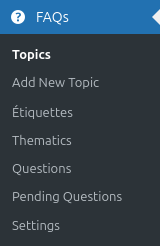
- Topics: listing, adding, editing new topics,
- Add a new topic:=topic) : adding new topics,
- TAgs: add tag taxonomies to associate them with your FAQs,
- Thematics: listing, adding, editing themes,
- Questions: list of all questions,
- Pending questions: questions submitted by users awaiting moderation or added manually, an email address and a comment are stored in this table, enabling a personalised response to be sent to the user if necessary.
- Settings : Elasticsearch settings.
Connecting Elastic Search to FAQtastic
PRO
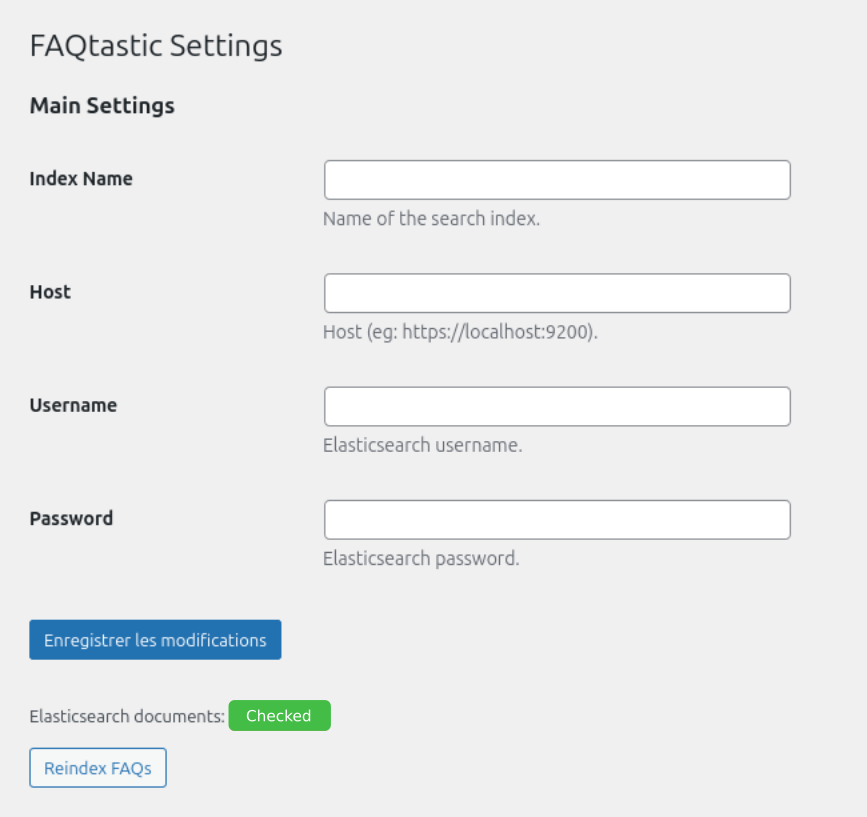
Please visit your Elastic Search space to retrieve the following information:
- Index name: Insert the name of the index you created in Elastic Search.
- Host: Insert the host of your Elastic Search.
- Username: your username
- Password: your password.
Taxonomies
Properly organising your FAQs by topic and theme will help your visitors find the subject they are interested in at a glance.
In the pro version, organising topics by subject is even more useful for complex FAQs or when you have several FAQs on your site. This allows you to manage the display of specific subjects on different pages.
Topics
PRO
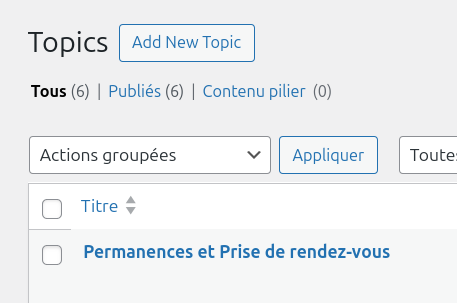
The list of topics allows you to:
- Add new topics and their content
- Edit existing topics
Thematics
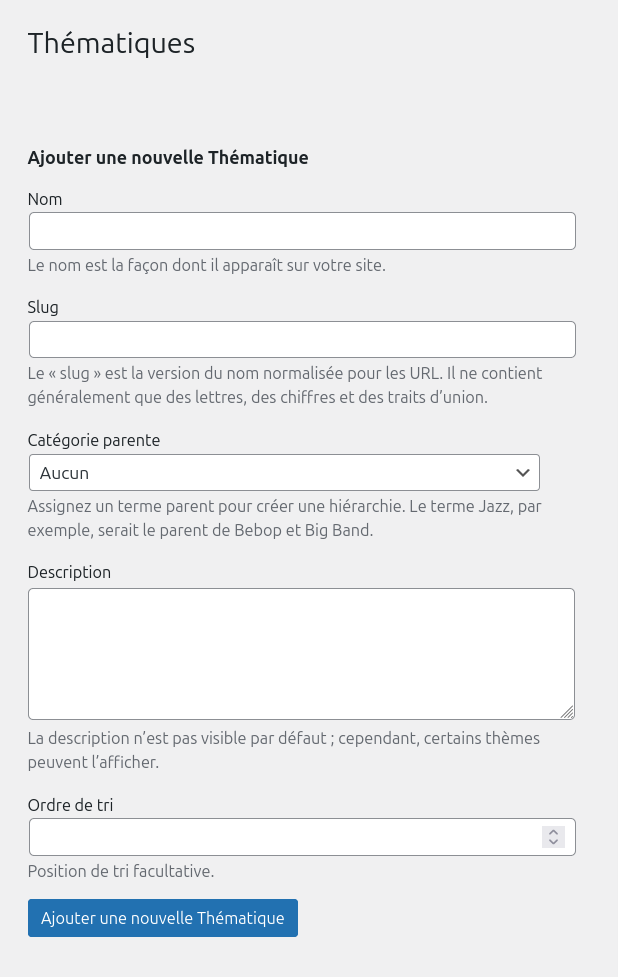
The list of thematics allows you to:
- Add new thematics
- Editing existing thematics
- Prioritise topics into parent/child categories
Questions
On the left-hand side, complete the title with the question and the content with the answer to your FAQ.
Then, on the right-hand panel, link the FAQ to its subject and theme, and fill in keywords and contexts. The position and display of the question is managed automatically within the themes and subjects.
Please note: if the FAQ is not assigned anywhere, it will be displayed under a theme called ‘Other themes’, the title of which can be customised.
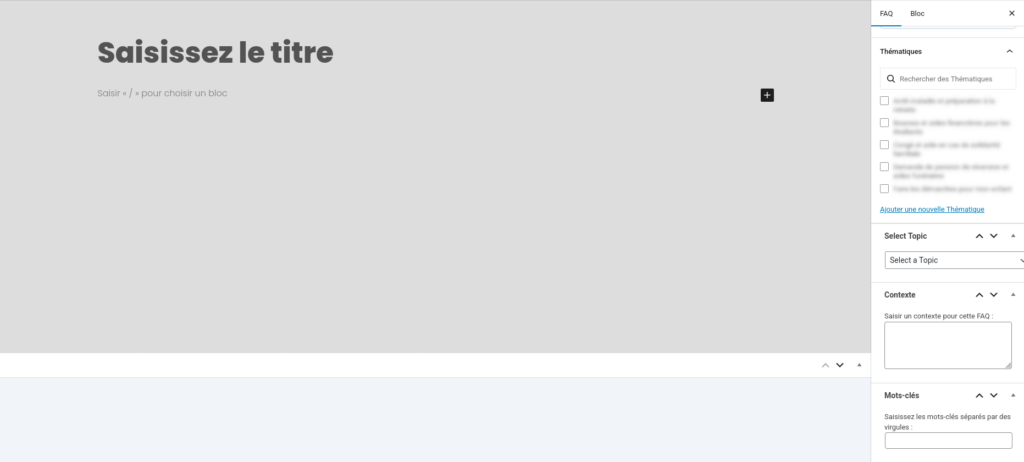
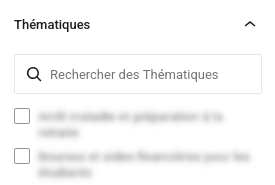
Selection of the thematic.s

Selection of the topic.s
PRO
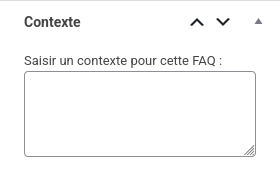
Adding context.s
Integrate them one after the other, respecting punctuation. You may have several contexts for a single question.
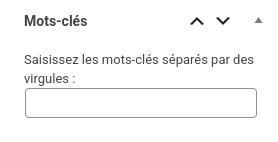
Adding keywords
Les questions en attente
PRO
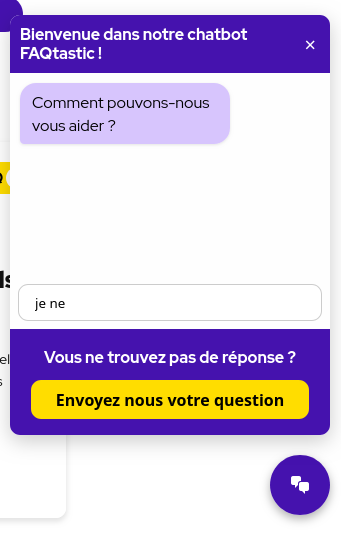
Proposer à vos utilisateurs de vous suggérer leurs questions depuis le chatbot
Rien de plus frustrant que de ne pas trouver de réponse à sa question, si le chatbot ne peut pas fournir cette information, le Chatbot propose l’option :
activer les suggestions
Un bloc avec bouton personnalisable est proposé en bas du chatbot lorsque l’utilisateur ne trouve pas de réponse après plusieurs formulation de questions.
Vos utilisateurs peuvent désormais vous envoyer leur question directement.
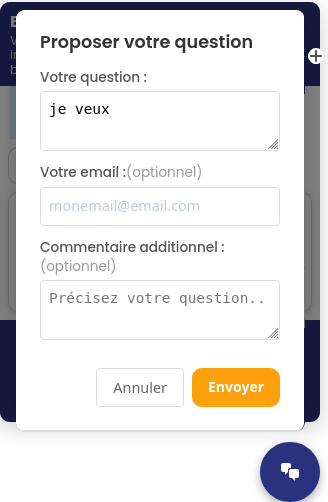
L’utilisateur remplit un formulaire pour proposer sa question
Le formulaire récupère :
- Le mail de l’utilisateur : pour qu’il soit alerté lorsqu’une réponse à été apportée à sa question.
- Sa question : peut être réutilisée dans la création de la FAQ.
- Un contexte ou description de la demande : peut être réutilisé dans la création de la FAQ.
Côté backoffice
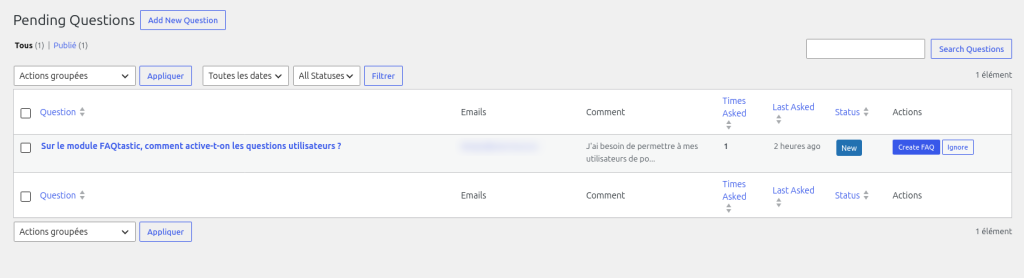
Vous recevez une notification par mail lorsqu’un utilisateur fait une proposition de question. Vous pouvez consulter la liste des demandes depuis le menu FAQtastic > Suggestions.
Traitement de la question et de son status :
- créer une question FAQ de la question directement depuis la liste.
- vous pouvez aussi choisir de l’ignorer
L’utilisateur reçoit une notification par email lorsqu’une réponse à été apportée.
General blocks

Displaying FAQs
Once you have created your FAQ content, add the ‘FAQtastic FAQ’ block to your composition. page, article or template. The block manages the display of the entire FAQ and can be customised to adapt to your theme.
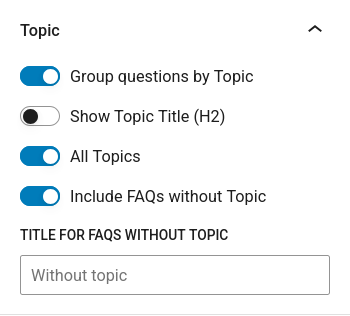
- Ability to group/ungroup topics,
- Show/hide topic titles,
- Display all topics or only a selection,
- Customise the title of questions without a subject.
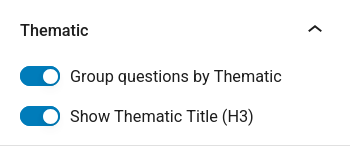
- Group/ungroup topics,
- Show/hide theme titles.
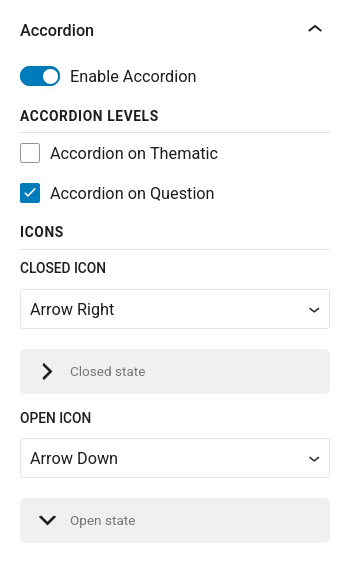
- Enable/Disable accordions,
- Accordion option on thematics,
- Accordion option on topics,
- Choice of open/closed icon.
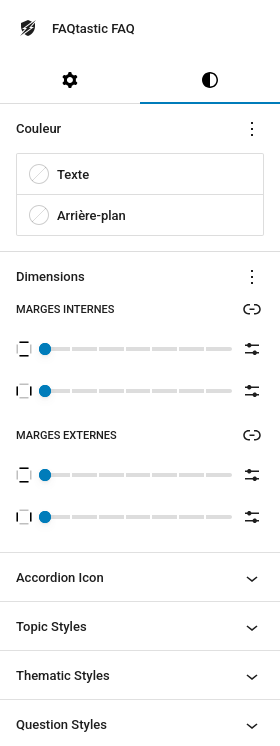
- General styling of the block: text and background colours, internal and external margins
- Styling accordion icons: colours, fonts, sizes, inner and outer margins, borders, radius
- Stylisation of subjects, thematics, questions, contexts, answers:
- block colour,
- internal and external margins,
- borders,
- radius,
- colours of titles and backgrounds,
- fonts,
- text sizes

Displaying the Chatbot
Add the ‘FAQtastic Chatbot’ block to your composition of page, article or template. The block manages the chatbot display and can be customised to adapt to your theme.
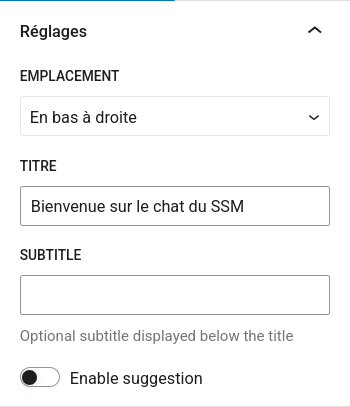
- Chatbot window locations:
- Bottom right
- Bottom left
- Top right
- Top left
- Relative
- Customising the chatbot title,
- Customising the chatbot subtitle,
- Enable suggestions: enables users to suggest questions if they cannot find any results for their query.
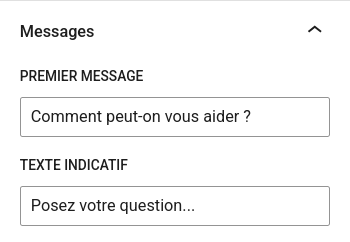
- First message: first bubble in the chatbot,
- Indicative text: text in the search field.
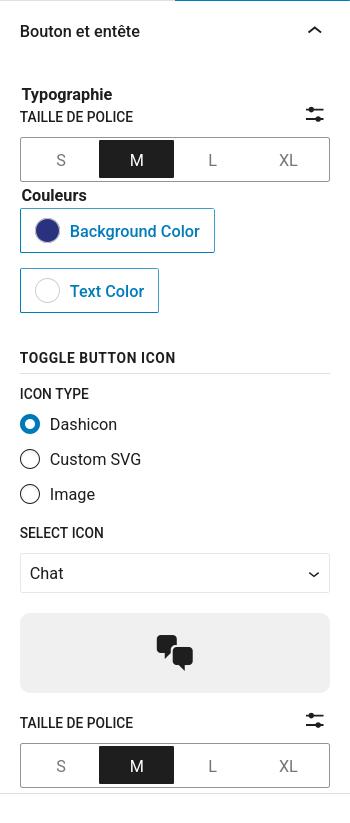
- Chatbot button and header settings and styles:
- Background colours and text
- Fonts,
- Size,
- Customising the chatbot icon
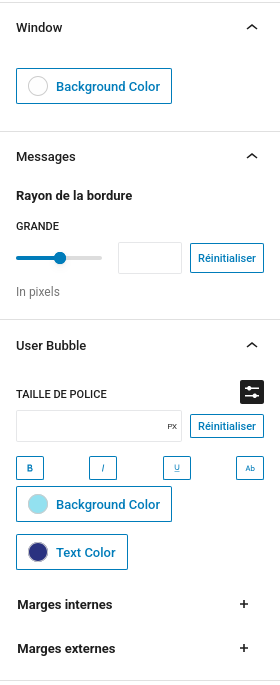
- Choosing the background colour of the dialogue box
- Styling of chatbot and visitor bubbles:
- Background and text colours,
- Internal and external margins,
- Text size,
- Radius
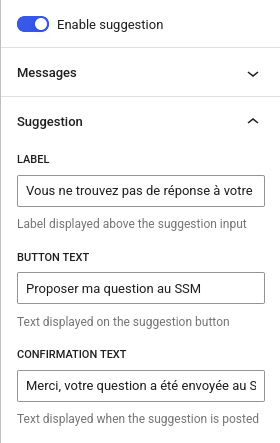
Activer l’option des suggestions de question :
Dans l’onglet Suggestions > Personnalisez les textes pour vos visiteurs :
- Label: title above the button to submit a question,
- Button text: text on the button,
- Message de confirmation : après envoie de la question via le formulaire.
Note: The email address for receiving questions must be configured in the FAQtastic settings.
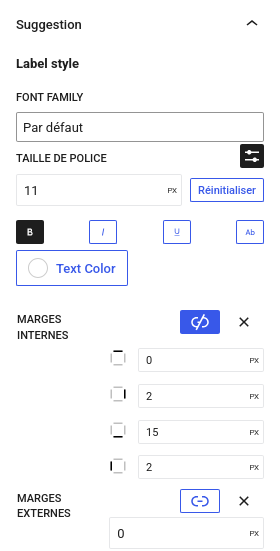
Gérez le style de votre bloc suggestions pour le label
- Textes et polices
- Couleurs
- Espacements
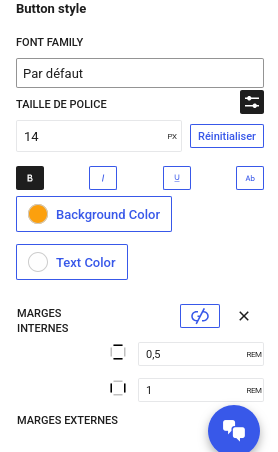
Gérez le style de votre bloc suggestions pour le bouton
- Textes et polices
- Couleurs
- Espacements
Displaying contexts
Add the ‘FAQtastic Context’ block to your composition of page, article or template if you wish to make the context visible on the question page, for example.
The context title is customisable.
Displaying number of questions by topics
PRO
Add the ‘FAQtastic Count by Topic’ block to your composition of page, article or template to display the number of questions in your content.
The names of the units can be customised, as can the colours, text sizes and internal and external margins.
Displaying questions of the same topic
PRO
Add the ‘FAQtastic Siblings’ block to your composition of page, article or template to display other questions on the same topic to facilitate navigation between questions.
FAQs identicator
PRO
Add the ‘FAQtastic Indicator’ block to your composition of page, article or template to distinguish your FAQs from other content in your loops.
This block allows for free composition by adding as many content blocks as you wish.
For example, if you want to display your questions as an ‘FAQ’ taxonomy so that your questions stand out at a glance in search results.
Would you like more information about the features of the plugin ?
View product sheet

FAQtastic PRO
La FAQ élastiques, (in)visible, robustes et évolutives qui dialogue avec vos visiteurs pour leur apporter des réponses en un éclair.