
 EN
EN  FR
FR Come and meet us at our virtual offices and discover the 2D metaverse! We’re ready to welcome you from Monday to Thursday, 9am to 12 noon and 2pm to 5pm. Getting to our offices is easy and user-friendly 😉
No prior installation is required, a standard (recent) web browser is sufficient.
Of course, for a video conference, a microphone will be necessary and a camera appreciated.
Here’s a quick guide to help you understand how it works:
1. Visit our WorkAdventure offices
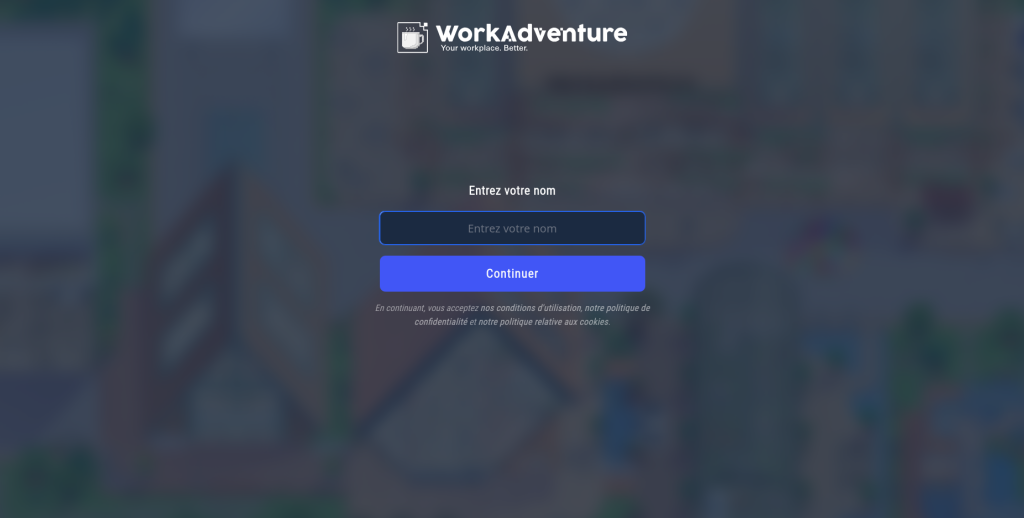
How to get to our offices:
Enter your first name.
Click ‘Continue’.
2. Select a Woka (=avatar)
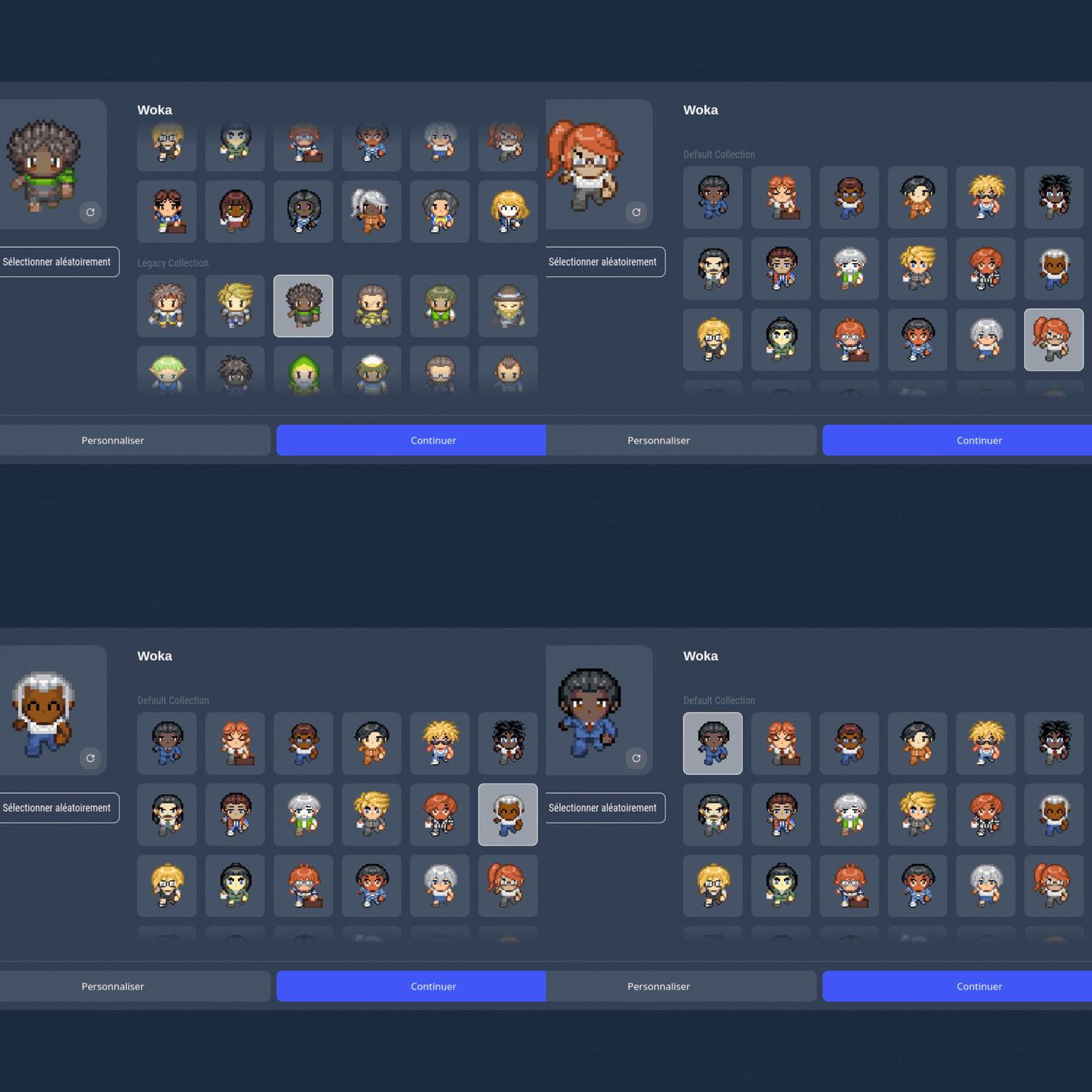
Choose a Woka that suits you 🙂
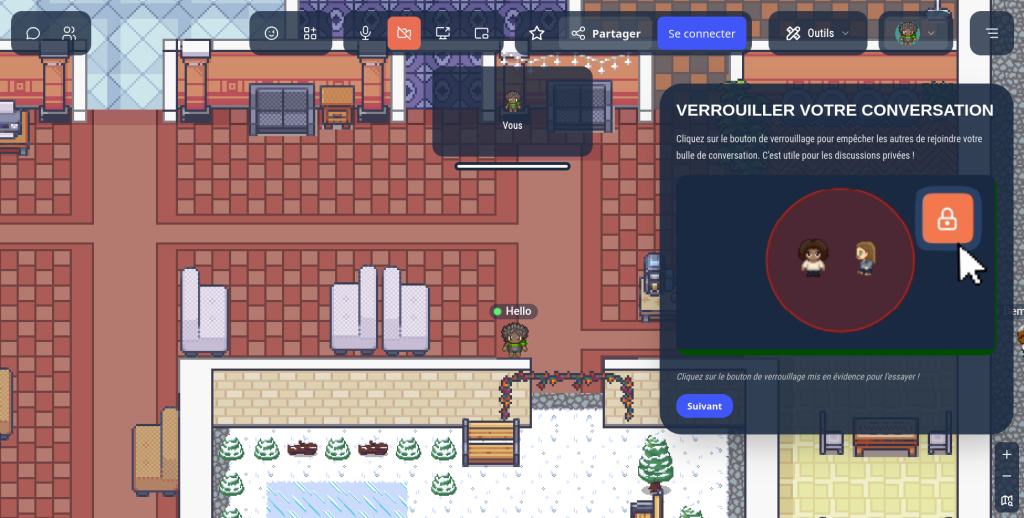
3. Allow access to the camera and microphone
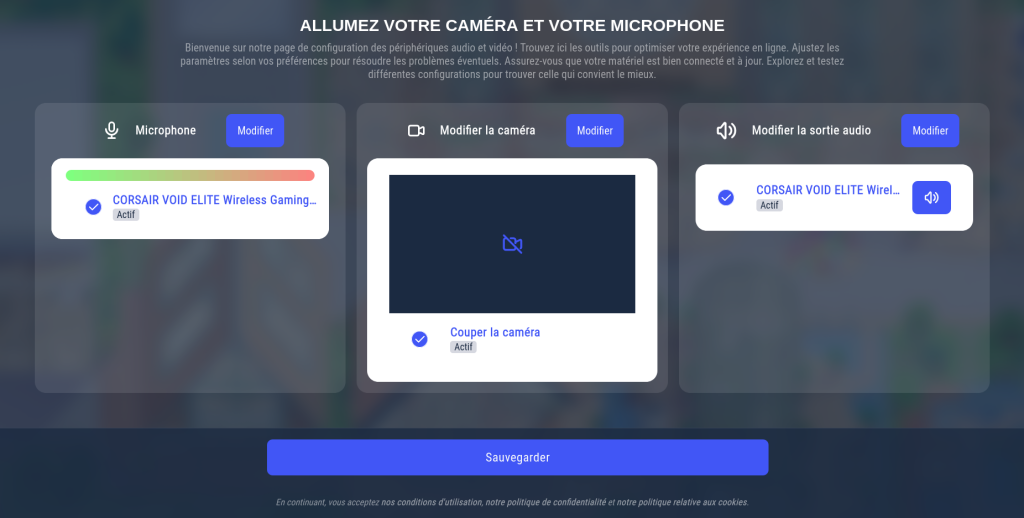
Select the inputs and outputs for your microphones and camera.
There is an automatic detection feature, but you can change the settings if you wish to customise them.
Here, you can also choose to turn off your camera from the start or at any time during your conversations in WorkAdventure.
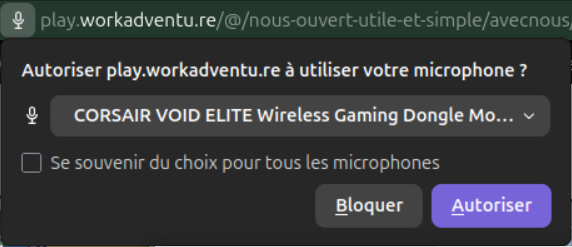
You can change these settings at any time in your browser by clicking on the 🎤 or 🎥 icon.
Click on Authorise therefore makes it possible toturn on the microphone and/or the camera.
4. Guide to interacting with US
To help you get to grips with the tool, a short tutorial is provided as soon as you arrive at our offices.
4.1. Getting around
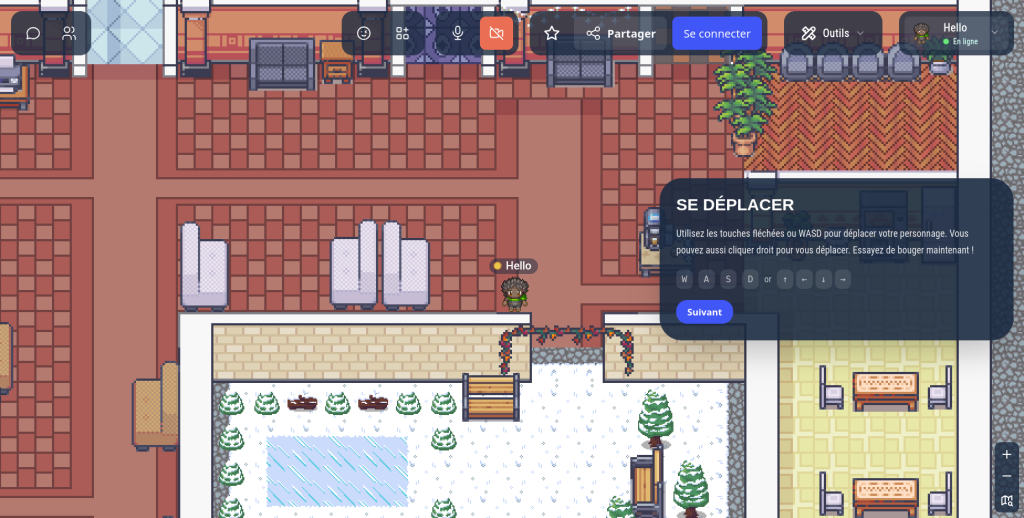
Use the arrow keys on your keyboard to move around, just like in a game!
To quickly travel to a distant location (e.g. a room): right-click once on the location you wish to reach and your character will head there automatically.
4.2. Talking to someone
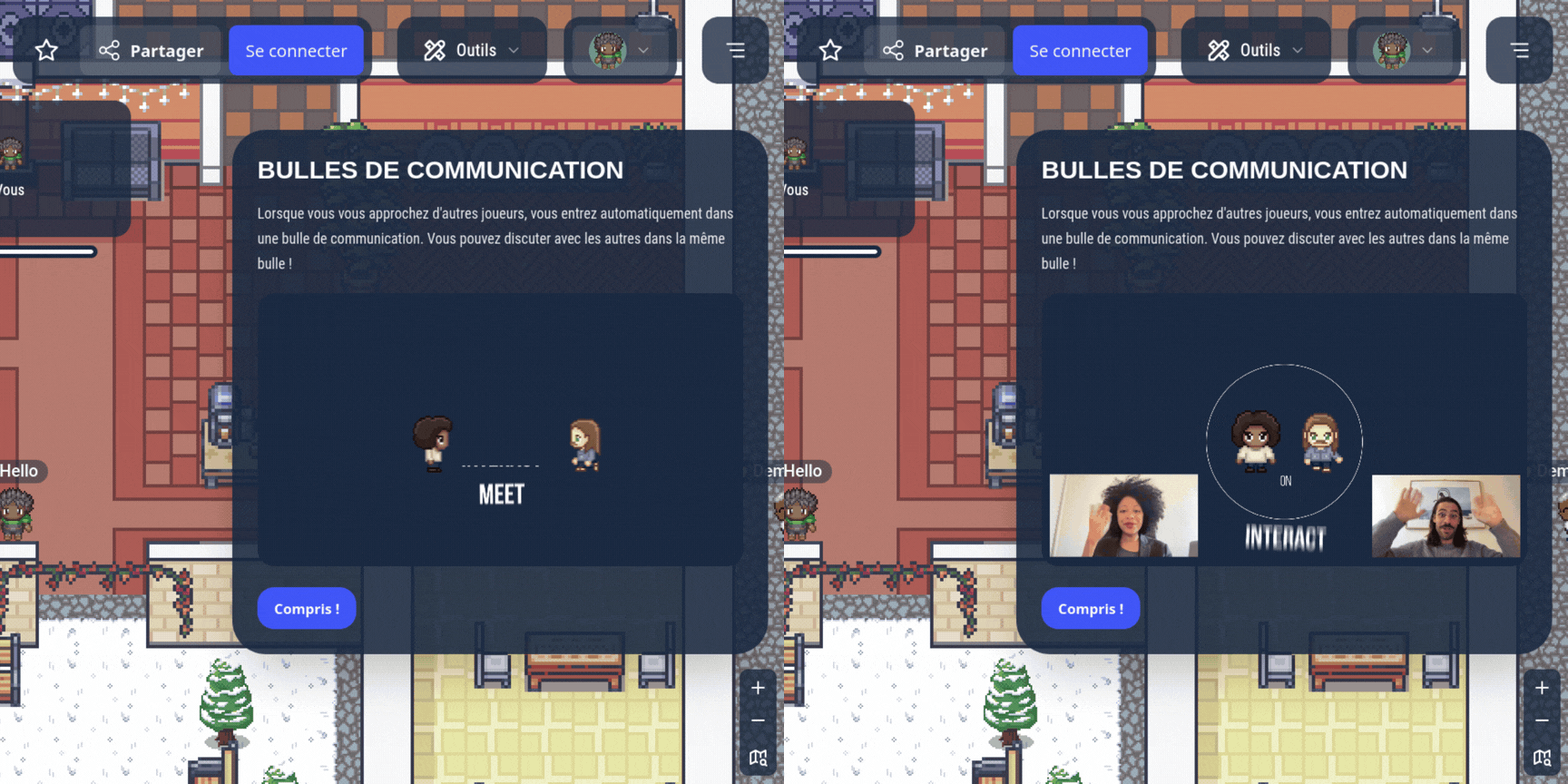
To approach someone to speak to them directly, just as you would walk over to a colleague to speak to them.
A chat bubble opens between the characters, and each person can enable sound and the camera to communicate.
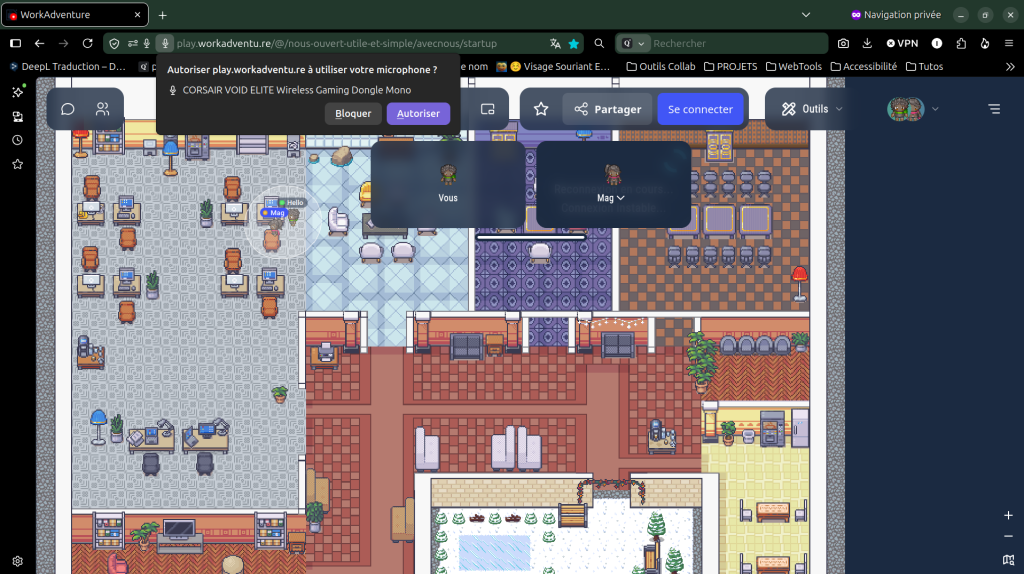
To make a conversation private, use the lock icon in the conversation.
4.3. Sharing your screen
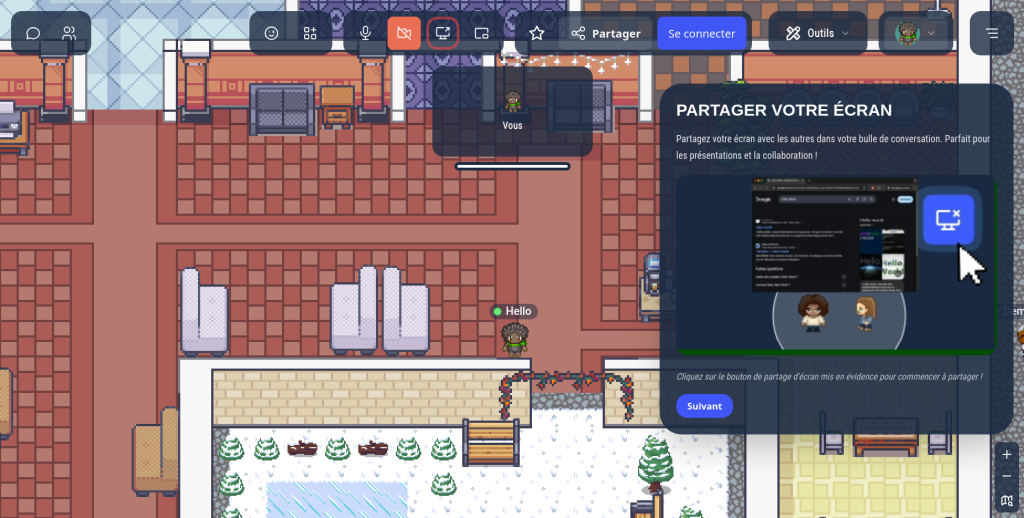
Click on the icon showing a computer screen 🖥️ to share your screen.
A small window will open, allowing you to choose which screen to share (if you have more than one screen).
To stop sharing, click on the same icon again.
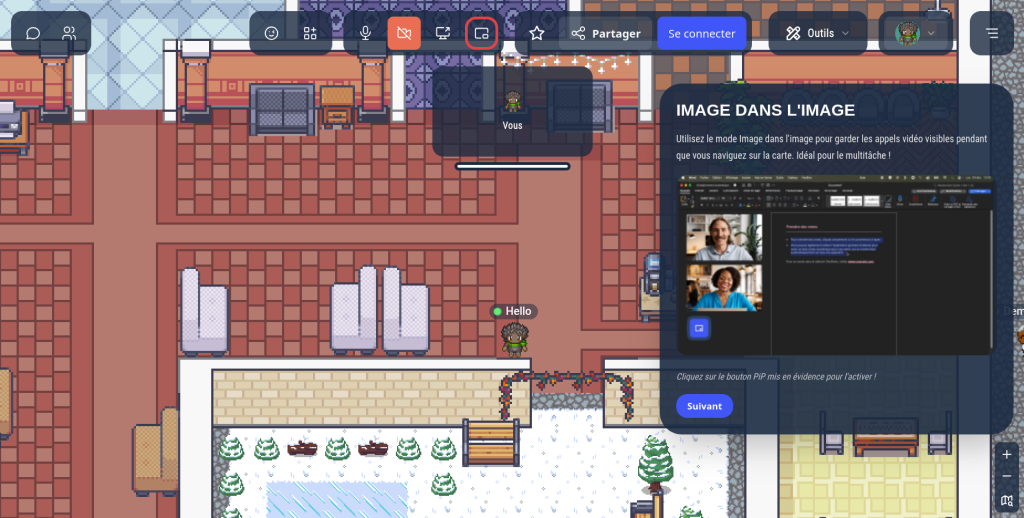
To continue seeing participants whilst sharing your screen: click on the split-screen button (circled in red).
5. Let’s meet in the meeting room
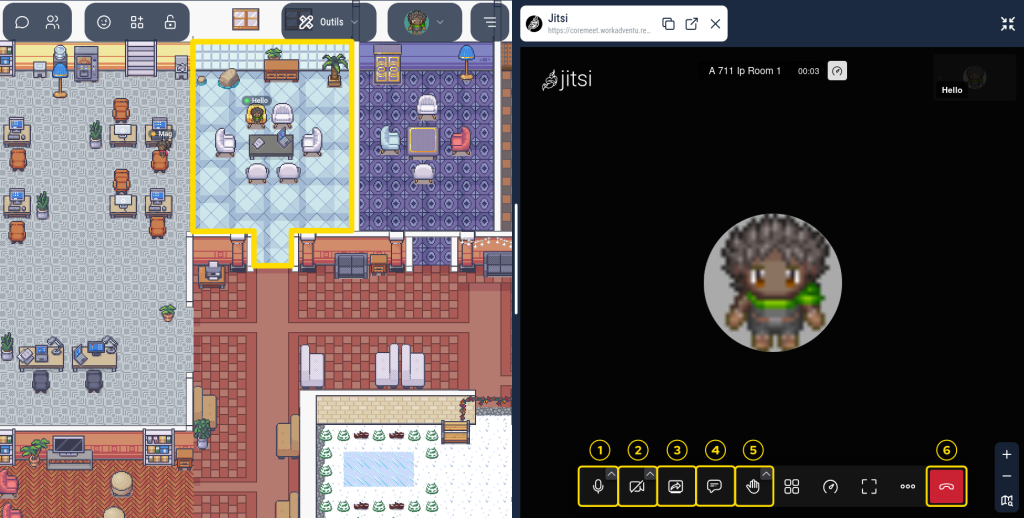
Right-click on the location you want to go to (or use the arrow keys on your keyboard to move there): in this case, the meeting room.
1
2
Join the meeting, enable your microphone and camera, and say hello :))
Enable/Mute the microphone: click on the microphone icon.
Enable/Disable the camera: click on the camera icon.